
GPT Image 2.6 AI Image Generator
Plan a still image with GPT Image 2.6
History
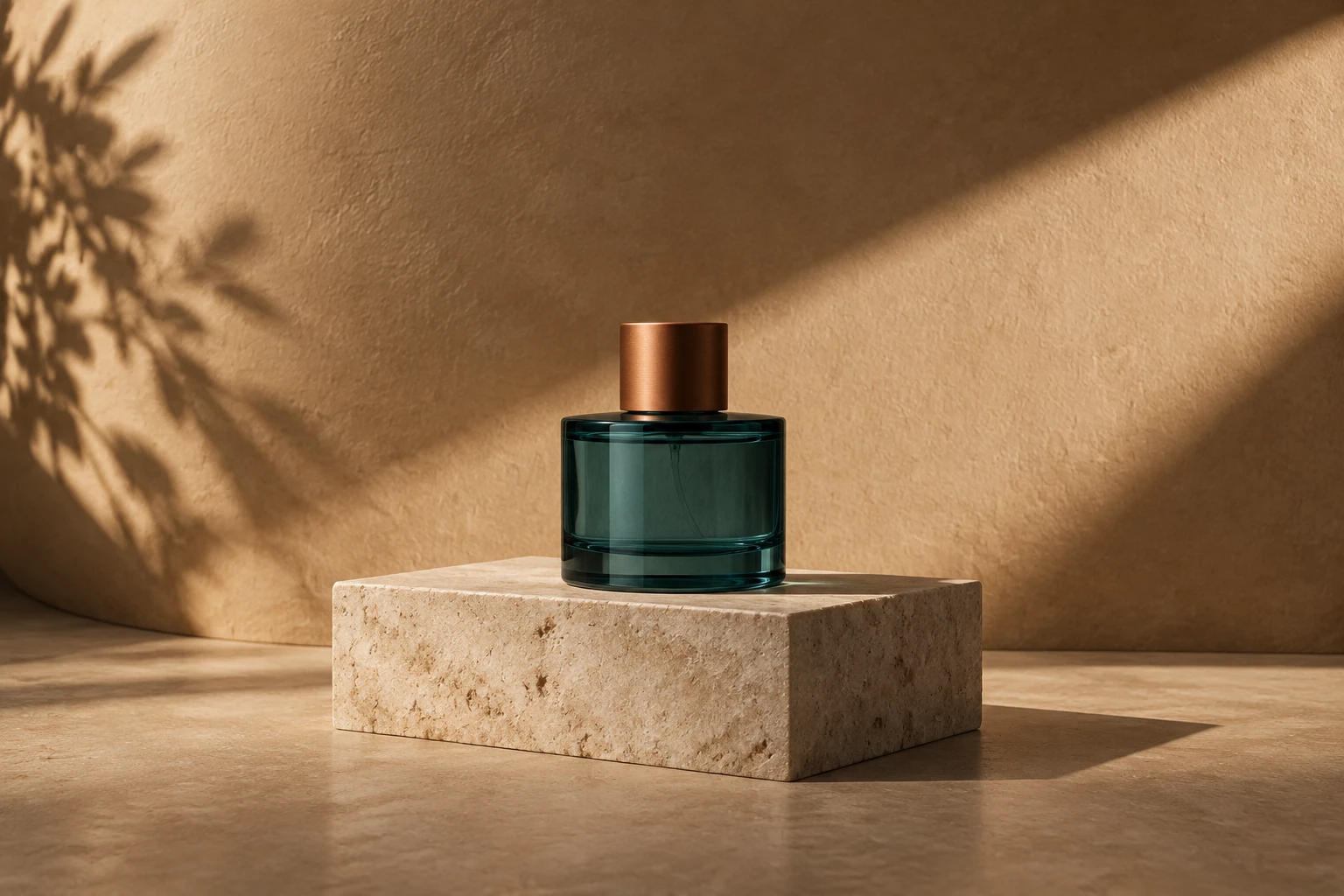
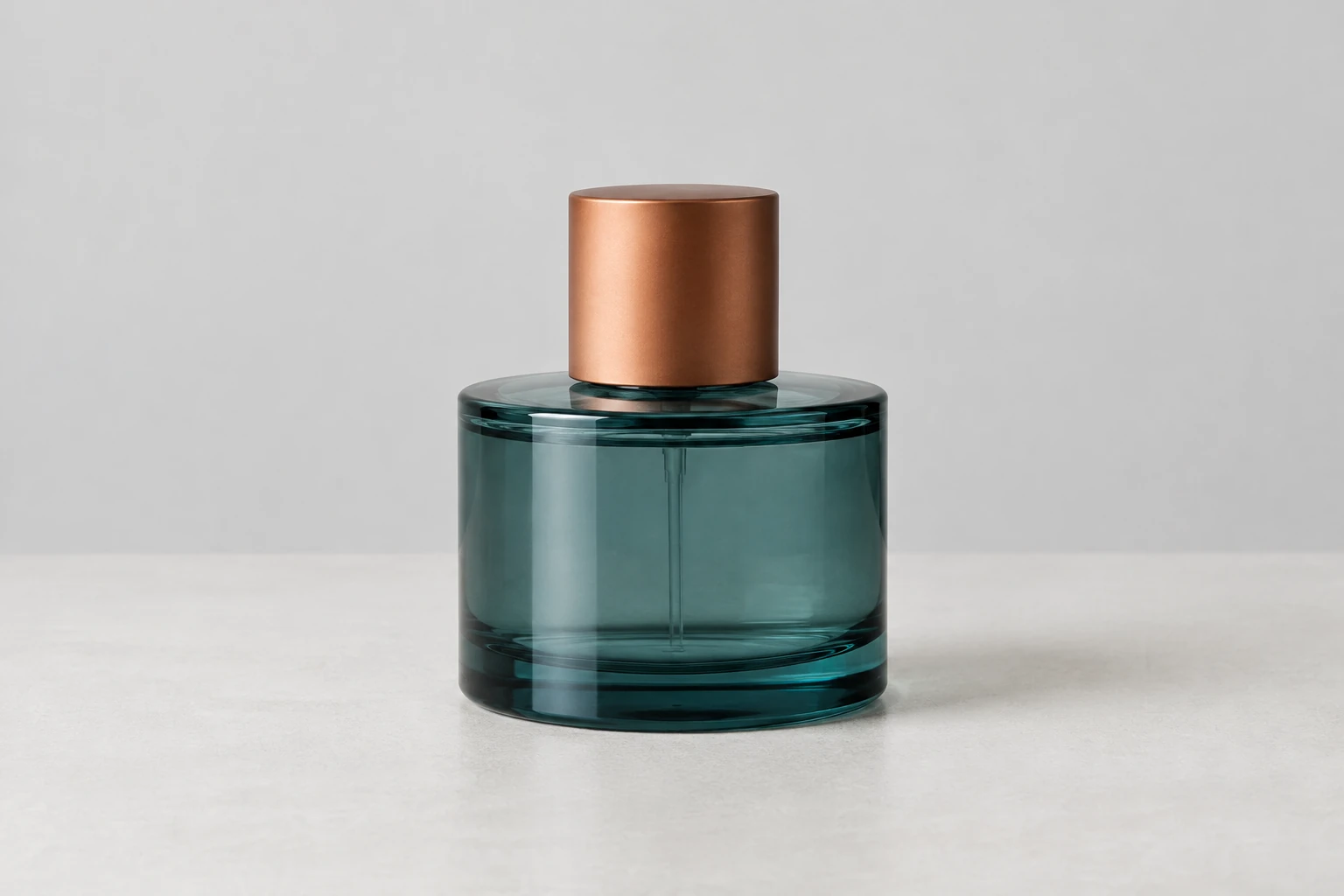
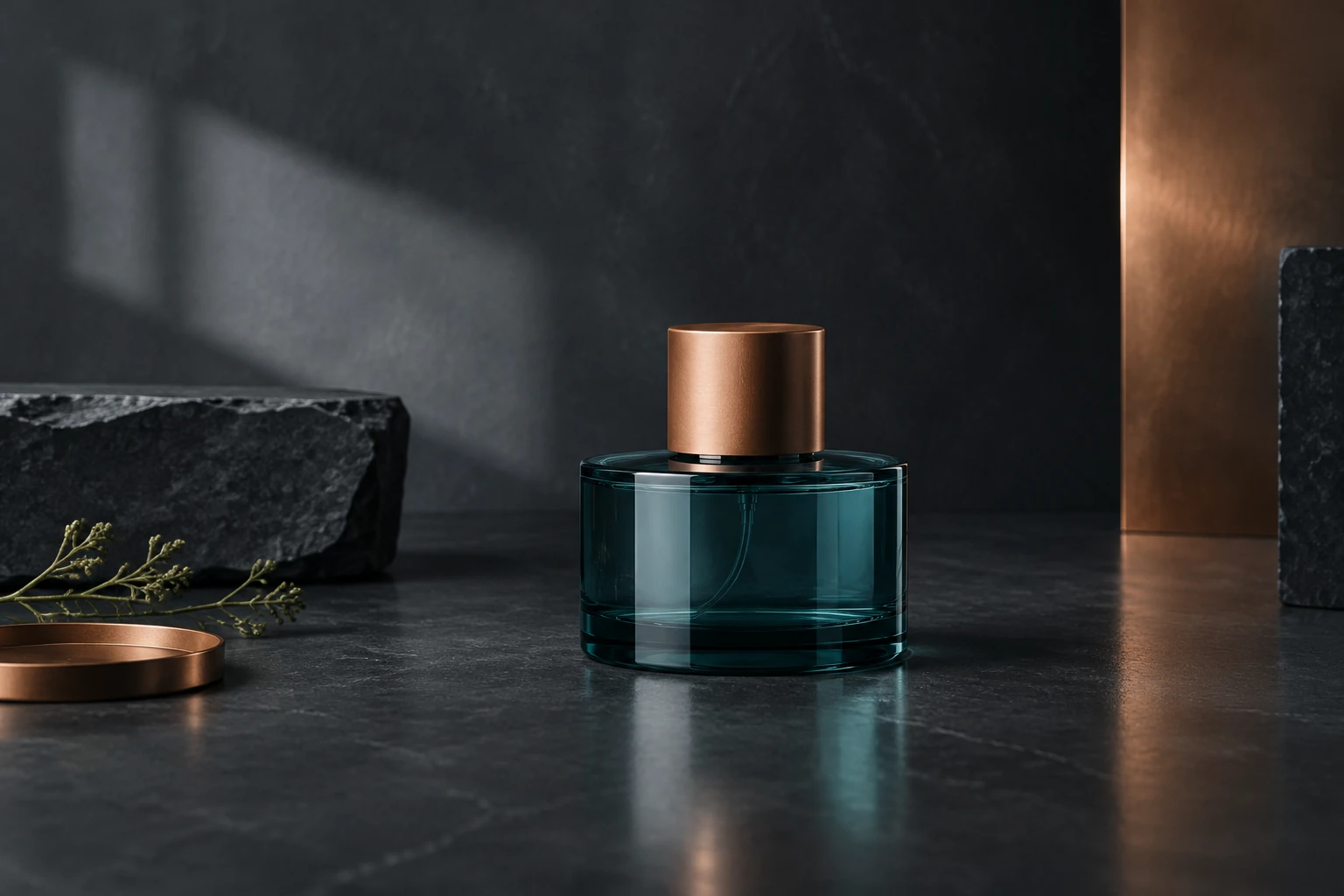
Use the GPT Image 2.6 AI Image Generator on highsfield.com to shape a still image around a deliberate subject, composition, lighting choice, and material palette. Start with text and no upload, or provide one actual reference image for a focused edit. For a product-still concept, you might plan an original low cylindrical perfume bottle in translucent smoked teal glass, with a matte copper cap and no label or lettering. Keep the composition decision specific: a warm sand-colored curved wall, one limestone plinth, and a diagonal strip of late-afternoon light—or a dark slate studio, soft rectangular reflection, and restrained copper accents. These are planning directions, not promises of an exact result.
Create and refine one clear image
Decide what must stay
Name the subject and its defining traits before adding art direction. For a new concept, specify the bottle’s cylindrical silhouette, smoked teal glass, matte copper cap, and lack of labels. For a reference edit, identify the visible details that should remain unchanged, such as shape, color, markings, or character features.
Choose one composition and lighting direction
Describe placement, background, and light as concrete visual choices. The sand-wall setup uses one plinth and a diagonal late-afternoon beam; the alternate uses dark slate and a soft rectangular reflection. Pick one direction first instead of combining both sets into a crowded scene.
Select the matching input mode
Text to Image uses an editable prompt and zero uploads, making it suitable for a new scene concept. Image to Image uses one reference image plus an editable prompt, making it suitable for a targeted refinement of an actual photo. This guide covers still images; it does not require a reference for text generation.
Review, then make a narrow revision
Inspect the silhouette, edges, material distinction, unwanted lettering, and the details you asked to preserve. If something shifts, revise one point at a time—for example, ask to restore the cap finish or soften the background light. Treat each result as something to review, not a guarantee of exact fidelity.
Build a prompt around visible decisions
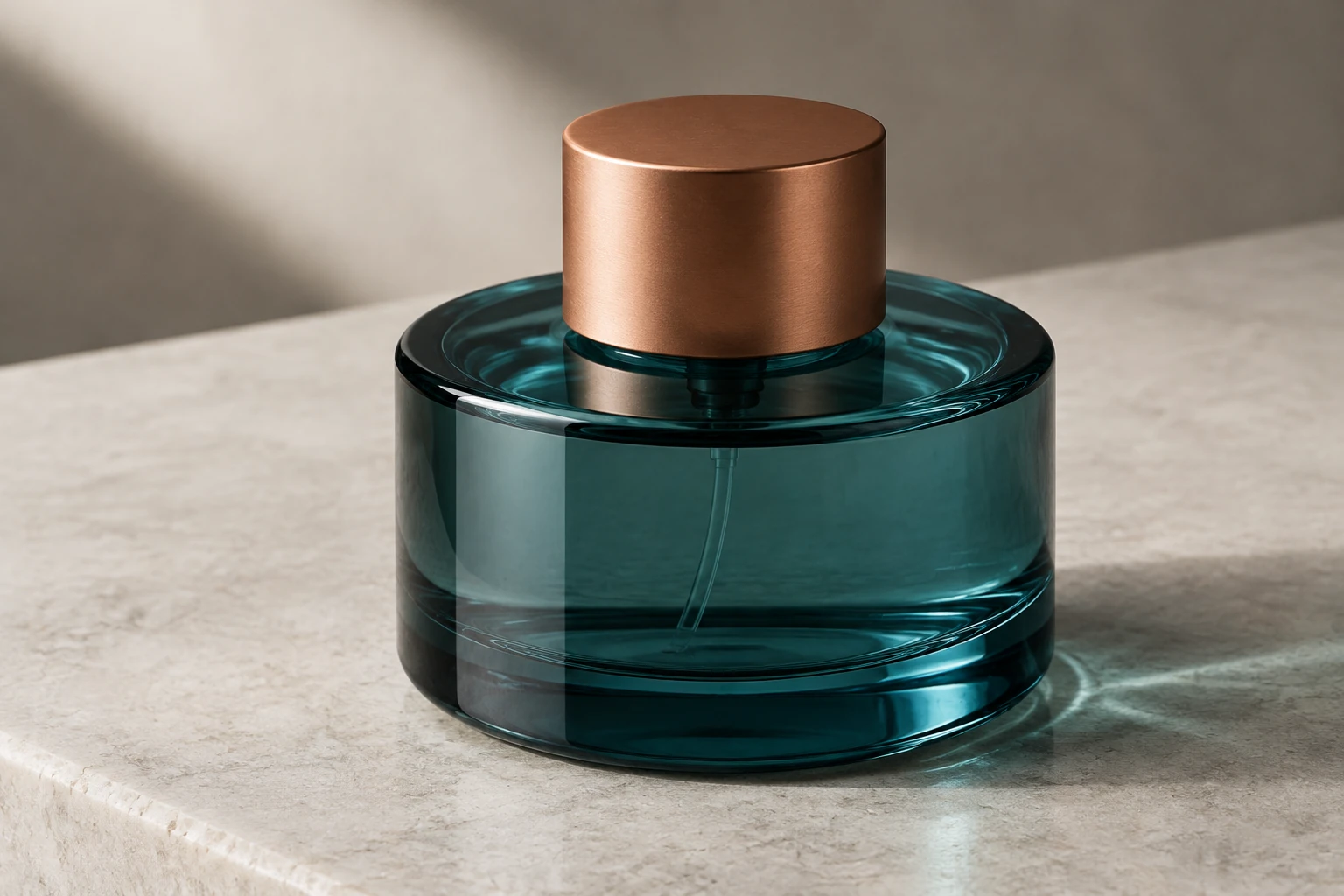
A useful product-still prompt moves from subject to scene: describe the object, its materials, where it sits, what surrounds it, and how the light falls. “Translucent smoked teal glass” communicates a different surface from “matte copper”; naming both helps keep the material intent clear. Then limit the set: one plinth, one curved wall, one diagonal beam. A focused arrangement is easier to assess than a string of competing moods or extra props. State “no label or lettering” when an unmarked concept matters, then inspect the image for unwanted text rather than assuming the instruction guarantees its absence.
Make a reference edit that respects the supplied subject
Image to Image starts with one uploaded reference and an editable prompt. Use a photo of the actual object or character you want to refine, and ask for one defined change, such as warming the background or softening a reflection. Say which visible identity, design, colors, and details should remain. Do not use the example perfume concept as a replacement subject when editing a different photo. After generation, compare the result with the input: check the outline and edges, material appearance, any added lettering, and the details meant to be preserved. If the edit changes too much, narrow the request and try again.
Check model, size, and access before generating
Follow this guide with GPT Image 2.6 Flare or GPT Image 2.6 Sunburst; the native selector also lets you explore other models separately. Both are enabled for generate and edit; the names identify the available choices, not a supported quality or speed ranking. Current model and size/aspect choices determine the live Required Credits shown in the interface. Check account access and quote before selecting Generate. Both models require paid account eligibility; check access and the live quote before starting.
Track the still and assess its finish
Generation time can vary, so no exact wait should be assumed. Check status and ready images in History. When reviewing a result, look at the full composition first, then zoom attention to the bottle outline, glass transparency, cap finish, shadow edges, stray props, and unwanted lettering. For a scene alternative, change the lighting or setting in a separate iteration rather than piling new directions onto the original prompt. A deliberate review-and-revise loop is more practical than expecting the first image to match every detail exactly.
GPT Image 2.6 questions
What does the GPT Image 2.6 AI Image Generator do?
It is for generating or editing still images with an editable prompt. You can describe a new scene or provide one reference image for a focused edit, then review the result and refine your request.
Do I need a photo to generate an image, and how many references can I use?
Text to Image uses an editable prompt with zero uploads. Image to Image uses one reference image and an editable prompt. Use the actual subject photo for an edit; this workflow does not call for multiple references.
Is GPT Image 2.6 free, and how do I check access or the credit quote?
GPT Image 2.6 Flare and Sunburst do not have free-eligible access, so do not assume a free allowance or trial. Check that your account has access, then review the live Required Credits for your current model and size/aspect choices before Generate.
How long does generation take, and where do I find the result?
Wait time can vary; there is no fixed time to rely on. Check the generation status and look for ready images in History.
What is the difference between Flare and Sunburst?
These are the two GPT Image 2.6 options covered by this guide, and both support generate and edit. No quality or speed comparison is implied; check the live credit quote and choose an option available to your account.
How should I revise and review a generated or edited image?
Check silhouette, edges, material appearance, unwanted lettering, and details that should have been preserved. Make the next prompt change narrow and specific, then compare again. Treat fidelity as something to inspect rather than a guaranteed exact match.
More ideas to explore
highsfield.com · Updated
What's new on this page
- — Added a GPT Image 2.6 still-image guide for cinematic product lighting with teal glass and copper, with four composition studies, text and single-reference prompts, live-credit guidance and History review.