
Seedream 5.5
Create or refine a still with Seedream 5.5
History
Use Seedream 5.5 to plan an architectural still before separate video work. Build a calm reading nook from words, then inspect chair scale, window light and floor contact. To edit an existing room, supply one photo and request only warm-sand wall paint while preserving its furniture, layout and lighting.
Plan and refine your Seedream 5.5 image
Choose the still-image mode
For a new architectural still, open Text to Image. Its prompt is editable and the mode takes zero uploads. For a change to a real room or object, choose Image to Image, supply one clear reference, and edit the prompt to describe the intended change. The native model menu may expose other choices, but this guide is focused on Seedream 5.5.
Describe the scene or reference precisely
For a new scene, name the main subject, room, visible materials, viewpoint and lighting. State what must fit in the composition, such as the whole chair and table, and describe the floor contact you want to inspect. For an edit, use the actual supplied reference and identify one specific change. Explicitly say what should remain unchanged.
Check settings and the live quote
Review the model, aspect ratio and resolution before generating; these settings determine the live Required Credits quote. This model has no free-eligible account access here. Check your account’s paid eligibility and the current quote before selecting Generate. Do not rely on a fixed price or assumed free allowance.
Review the ready image
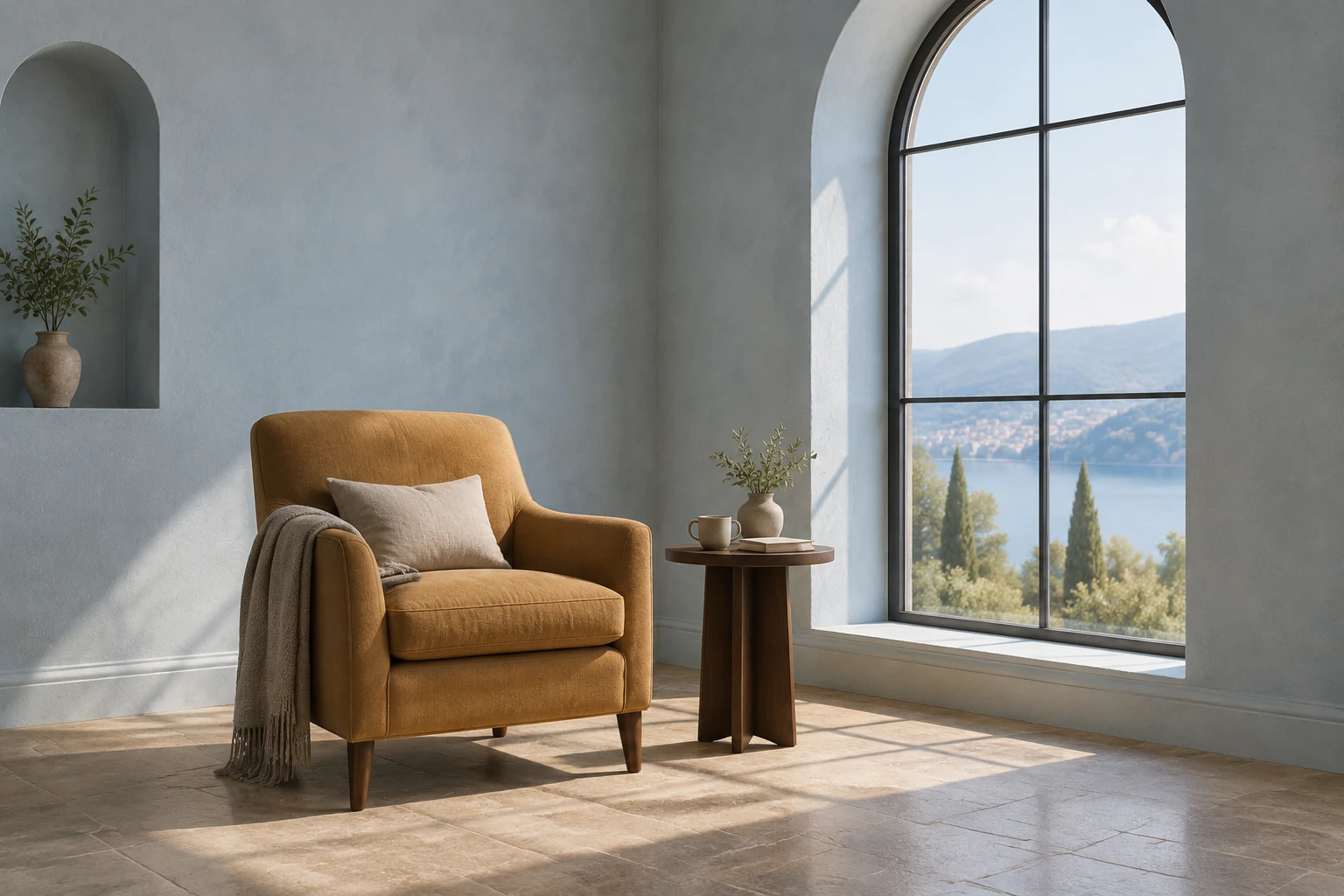
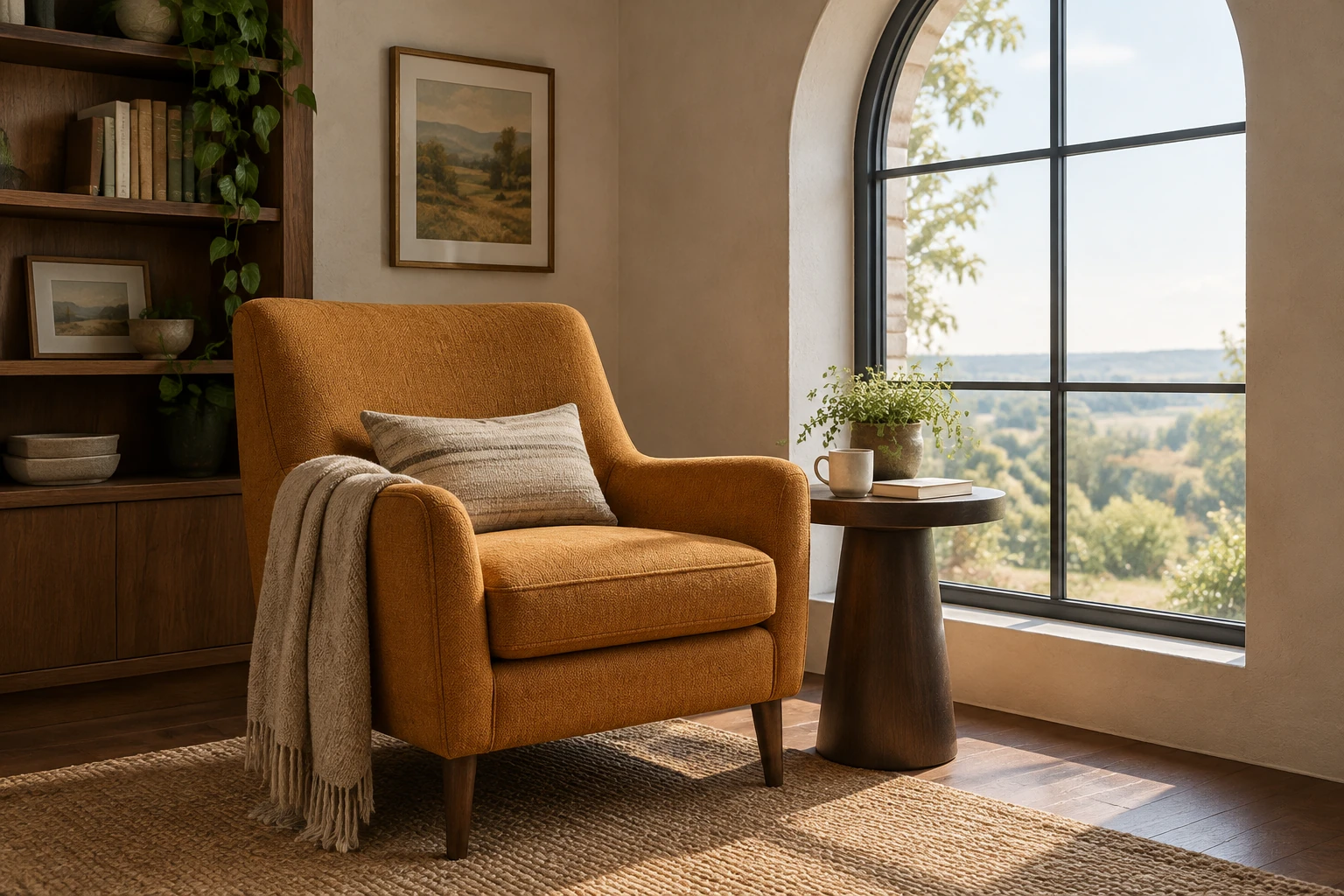
History shows generation status and ready images. Once an image is ready, inspect the composition, chair proportions, edge boundaries, materials, lighting and unwanted text. For an edit, confirm that only the requested feature changed and that the reference’s own furniture, layout, materials, camera and light remain intact.
Plan a readable architectural composition
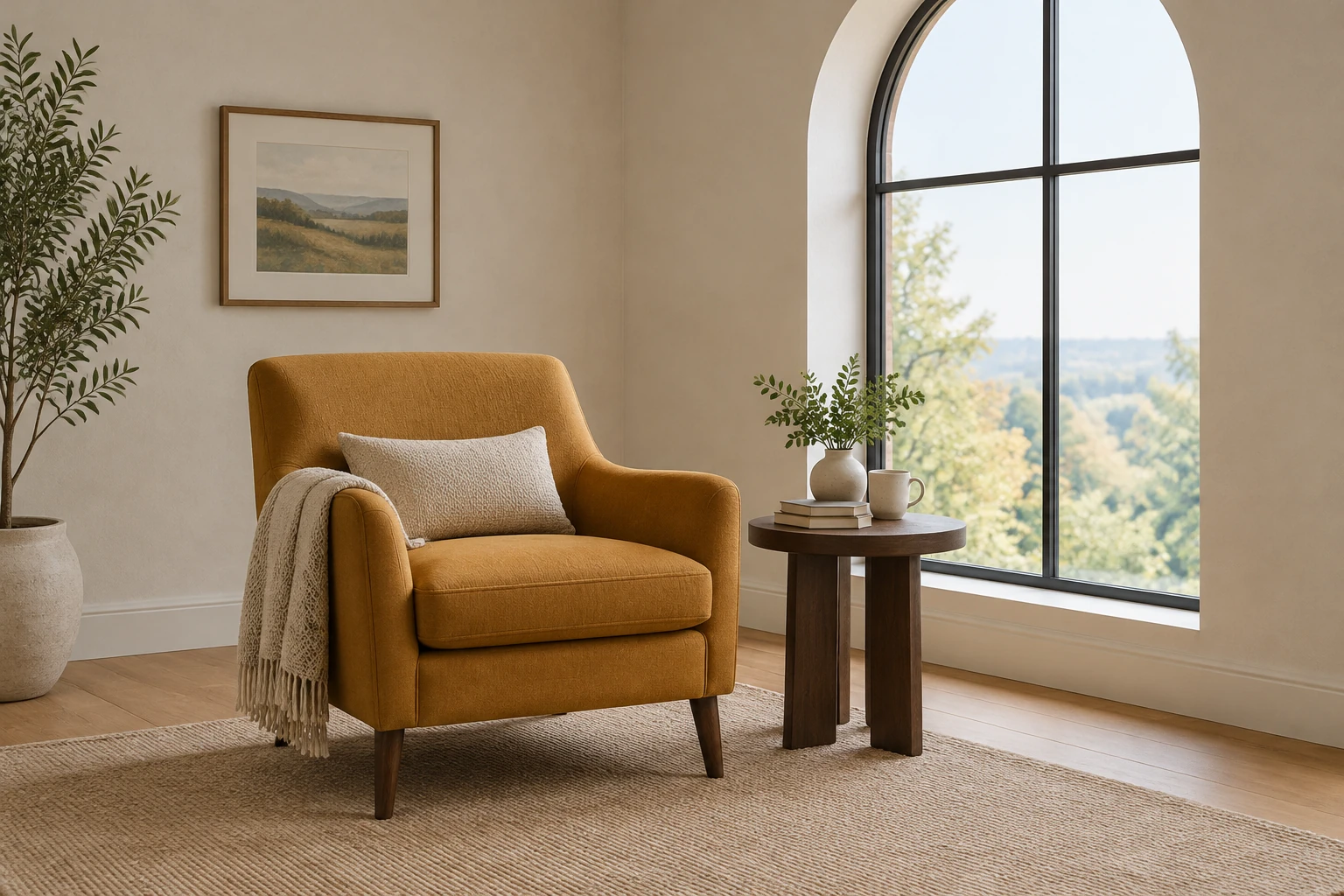
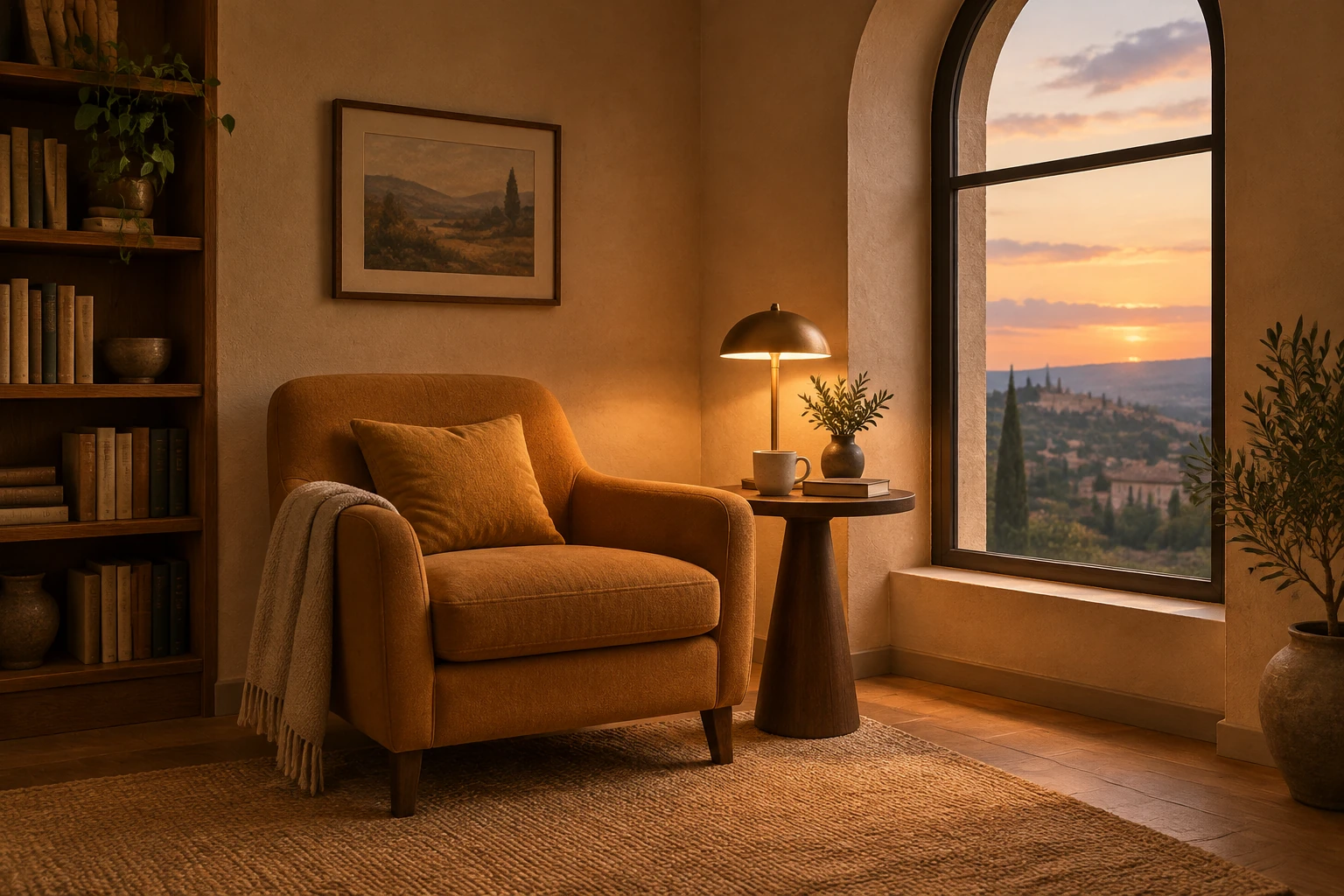
Start with a clear account of what should be in the frame: one ochre upholstered armchair, a small round dark-wood side table and a tall arched window. Then describe the room and the relationship between its parts. Asking for the complete chair and table to remain visible helps make scale and placement assessable; calling out soft window light and clear floor contact makes shadows and grounding part of the brief. These are prompt-writing choices, not guarantees about a result. Keep the scene restrained so the important forms are easy to review. The warm-sand evening-light direction is a separate original scene idea, not a replacement for the main pale blue-gray composition.
Make one controlled change to a real reference
For the room-edit task, use an actual supplied room reference in Image to Image, not the generated reading-nook example. Ask for only the wall paint to change to warm sand. Name the reference’s own furniture, layout, materials, camera and light as elements to preserve, rather than inventing replacements for them. A clear reference and a narrowly scoped instruction make it easier to judge whether the edit stayed within bounds. Review wall edges for spill, and check that neighboring surfaces and objects retain their original appearance.
Treat settings, credits and history as part of the workflow
Seedream 5.5 is the enabled display name to choose for this guide. The actual still-image interface offers the two different input patterns described above: no uploads for Text to Image, and one supplied reference for Image to Image. Model, aspect and resolution settings affect the live Required Credits quote, so check the current amount and paid eligibility for your account before Generate. History provides status and ready images; use it to see whether a job is still in progress or has a result to review. No exact wait or fixed cost is stated here.
Review before taking an image into later work
Judge a ready image for useful composition rather than assuming it is a finished architectural specification. Check whether the furniture fits the frame, whether proportions look plausible, whether surfaces remain distinct, and whether window light and contact shadows read clearly. In an edit, inspect boundaries and confirm the change did not spread to furniture, trim, floor or lighting. Look for unwanted text as well. This image workflow supports still-image planning; use a separate video workflow for video work.
Seedream 5.5 questions
What does this Seedream 5.5 tool do?
It is a still-image workflow for creating an image from an editable text prompt or editing one supplied reference with an editable prompt. It is not a 3D walkthrough or video tool.
How many references can I use in each mode?
Text to Image uses zero uploads. Image to Image uses one supplied reference alongside an editable prompt.
Can I use Seedream 5.5 for free, and what will a generation cost?
This model has no free-eligible account access here. Check paid eligibility and the current live Required Credits quote before Generate; the quote depends on model, aspect ratio and resolution settings.
How long will generation take, and where can I see the result?
No exact waiting time is promised. History shows the status and ready images, so check there for progress and available results.
How should I prompt an edit to a room reference?
Supply the actual room reference in Image to Image, request one specific change, and state which visible elements must remain as they are. For the example task, change only wall paint to warm sand while preserving that reference’s furniture, layout, materials, camera and light.
What should I check in the ready image?
Review composition, edges, proportions, materials and light. Check floor contact and shadows where relevant, confirm an edit stayed limited to the requested change, and look for unwanted text.
More ideas to explore
highsfield.com · Updated
What's new on this page
- — Added an architectural-still guide with four original reading-nook studies, editable generation and room-edit prompts, and checks for furniture scale, wall boundaries and window light.