
Outstanding Tiny Desk AI Video Generator: A Guide to an Original Ensemble Scene
Plan an Original Desk-Band Scene
History
Loading history…
The Outstanding Tiny Desk AI Video Generator can help you plan an original, intimate band-performance scene around one steady continuous ensemble shot. This is an independent original desk-band concept, not a supplied concert template or recording. Start by choosing Text to Video or Image to Video, then set the available duration, aspect ratio and audio options in the live controls before generating.
Storyboard preview
Place Pedals Beside a Seated Guitarist
Create your Desk band video
Choose the creation mode
Select Text to Video to describe fictional performers and a room without uploading an image. Choose Image to Video to animate one prepared group photograph. Prepare that photo first: it should already show the intended ensemble, instruments, clothing and arrangement. This mode animates the group image; it does not offer separate portrait slots or automatically assign band roles.
Describe one steady ensemble shot
Keep the scene simple and specific: identify the fictional cast, room and intended movement. For example, request a small shoulder sway and a friendly closing wave in ONE steady continuous ensemble shot. Keep performers in place and ask for plausible hands. Avoid relying on cuts, complex instrument playing, guaranteed lip sync, musical synchronization or a featured solo.
Set the live video options
In the Seedance 2.5 controls, review the live duration, aspect ratio and resolution options, along with the audio panel. Select settings that fit your intended use rather than assuming a fixed runtime or format. Audio follows the options currently shown in that panel; no original recording is bundled. Check the current credits beside Generate before you submit.
Generate and review status
Submit the prompt and check the job status in History. Use the available result and settings to decide whether to revise your prompt or make another attempt. No free allowance or particular result is guaranteed, so review the displayed credit information and generation status rather than assuming an outcome.
Build a scene that reads clearly
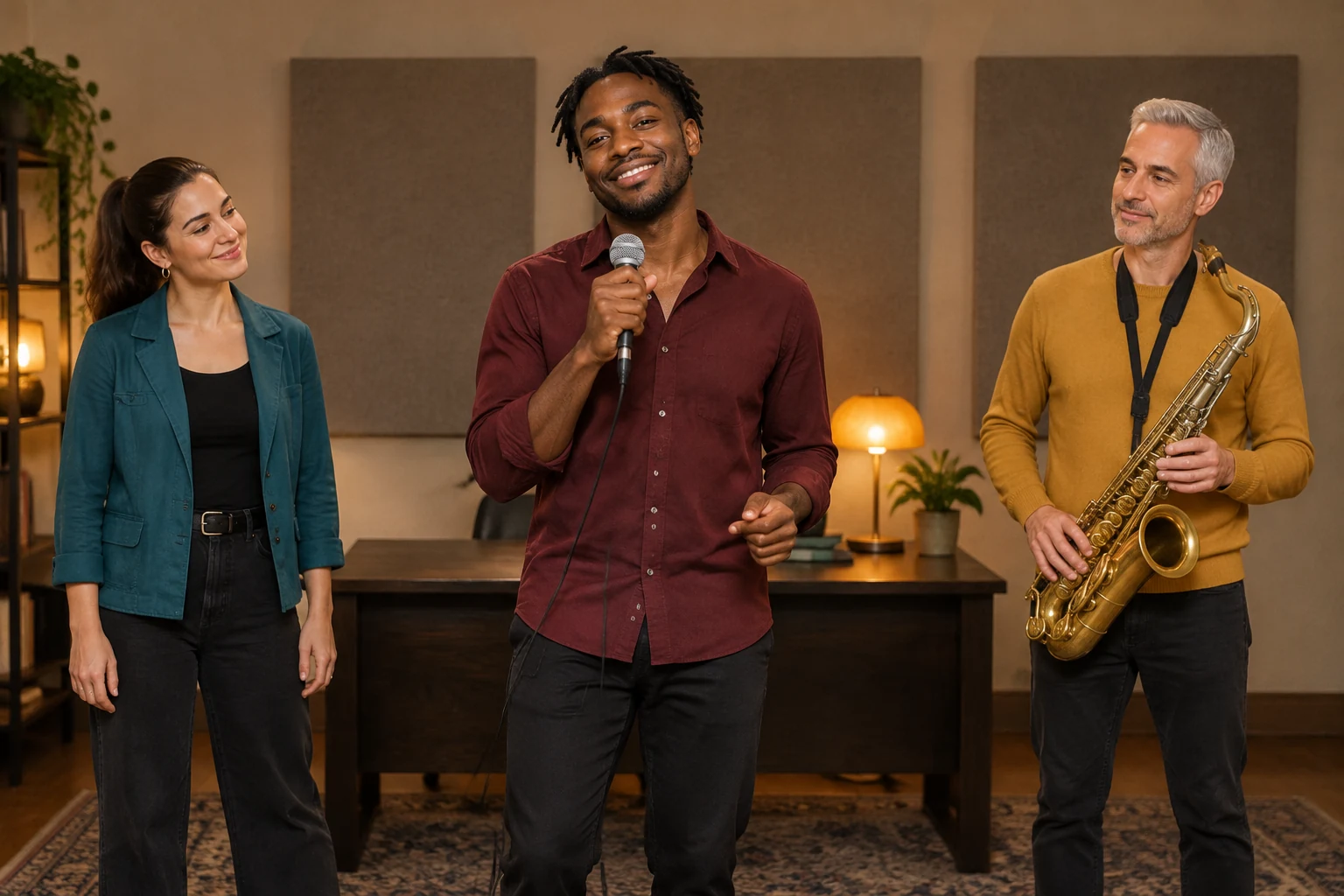
A small rehearsal office provides a focused setting without requiring a complicated performance. The example cast—a man with dark skin and short twists in a burgundy shirt, a woman with a brown ponytail in a teal jacket, and a silver-haired man in a mustard sweater—gives the prompt concrete visual distinctions. A dark desk, amber lamp and plain acoustic panels help define the room. Treat these as fictional scene details, not claims about real performers or a particular recording.
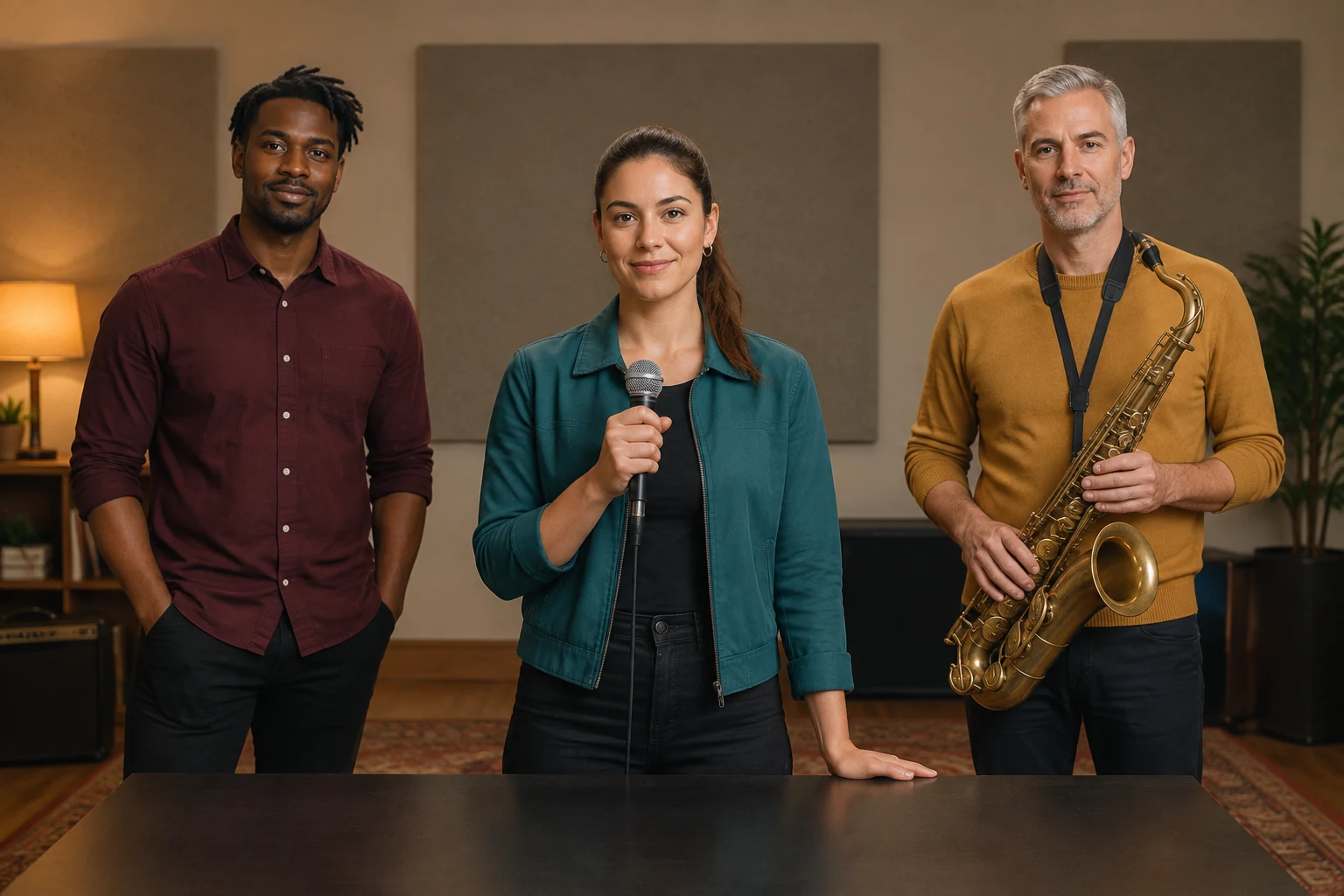
Choose Text to Video or Image to Video
Text to Video is suited to a newly described fictional ensemble: explain who is present, what the room looks like and how restrained the movement should be. Image to Video is for animating ONE prepared group photograph while preserving the actual people, faces, hairstyles, clothes, room and positions in that image. It does not use individual portrait slots or assign instrument roles automatically. If the photo does not already show the intended ensemble and instruments, prepare a more suitable group image before selecting this mode.
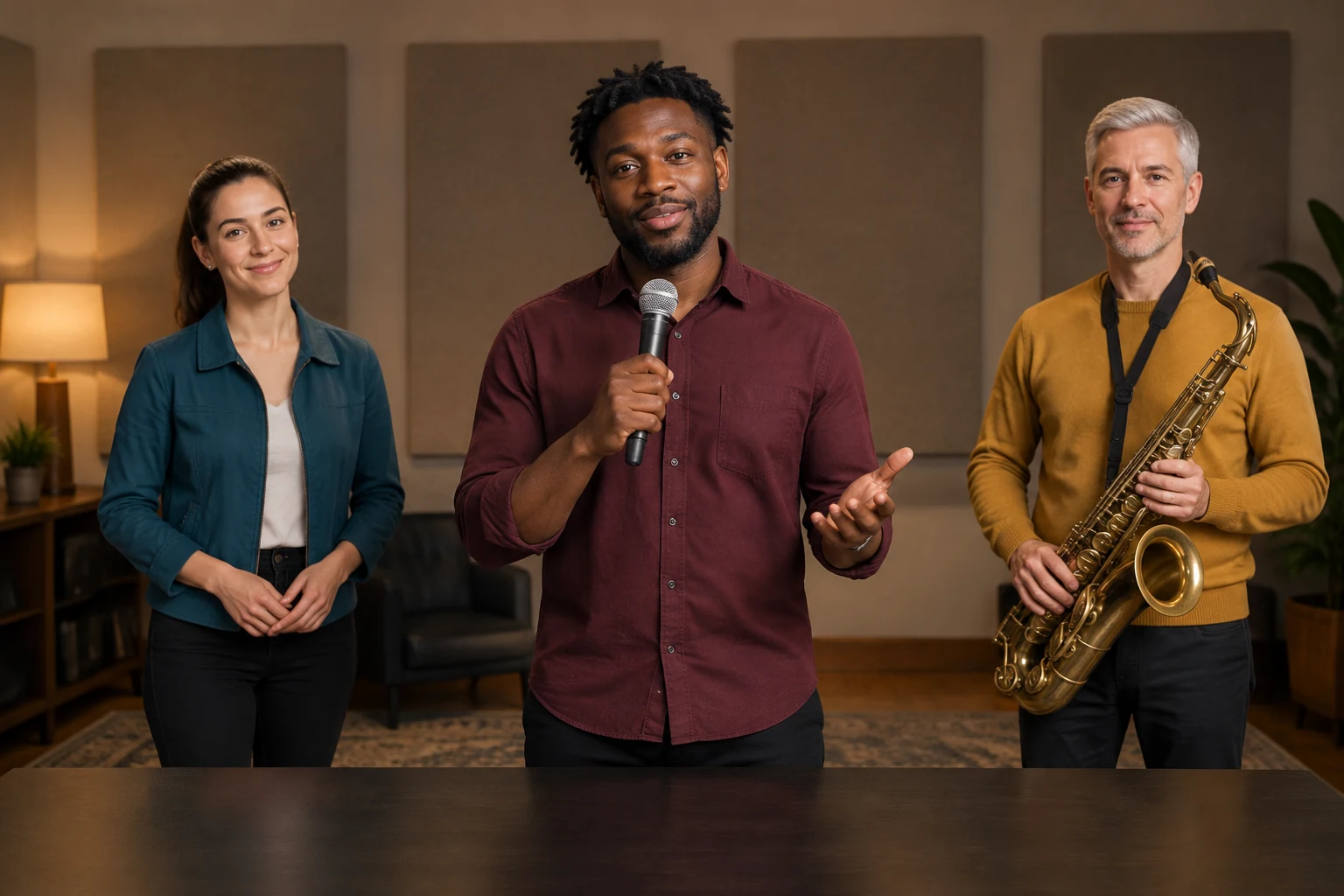
Keep movement and audio expectations practical
A subtle sway and a friendly closing wave are easier to describe as a modest visual plan than an elaborate performance. Ask for the group to stay in place and for hands to remain plausible. Do not count on precise fingering, a saxophone solo, lip sync, cuts or movement synchronized to music. Review the live audio settings before generating; the tool does not bundle an original recording, and available audio choices are governed by the current panel.
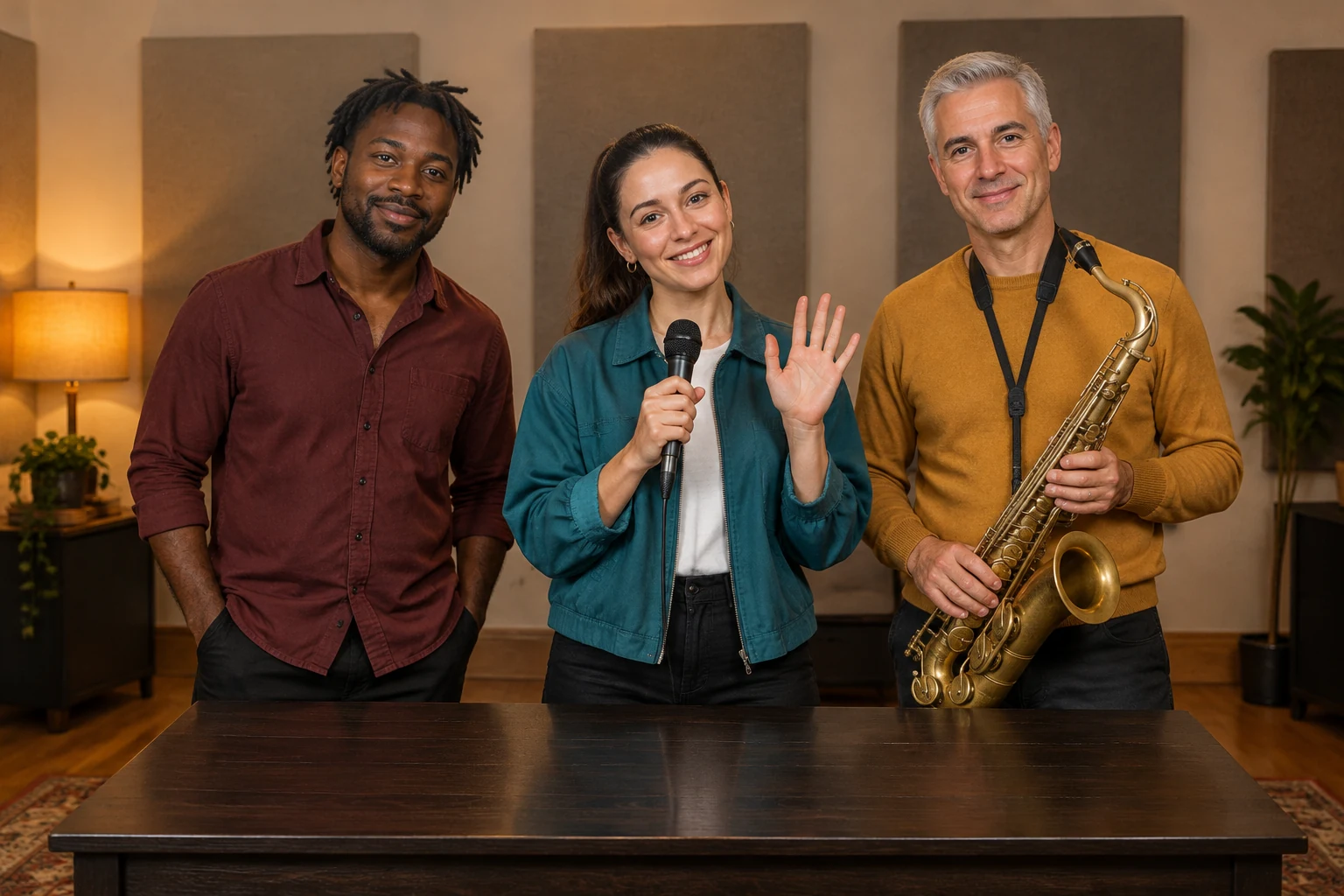
Use the storyboard as a planning preview
The nine-second silent three-frame slideshow is a planning preview, not a finished generated performance. It can help you check the intended visual sequence: the ensemble together, a small greeting and a closing pose. Use those frames to refine your written scene plan or prepare an appropriate group photo. They do not demonstrate a generated video result, audio, continuous motion or instrument performance.
Desk band questions
Does Text to Video require a reference photo?
No. Text to Video describes fictional performers and a setting without an upload. Image to Video instead animates one prepared group photograph.
What should an Image to Video photo show?
Use one photo that already includes the intended ensemble, instruments and arrangement. The mode preserves the pictured people and scene; it does not provide separate portrait slots or automatically assign band roles.
Can I choose the video's duration and aspect ratio?
Review the live controls for duration, aspect ratio and resolution when using Seedance 2.5. The options shown there govern your choices; this guide does not promise a fixed runtime.
Does the generator include an original song or recording?
No original recording is bundled. Audio follows the options currently available in the live audio panel.
Will the performers lip-sync or play instruments precisely?
Do not rely on guaranteed lip sync, complex hand playing, musical synchronization, cuts or a specific solo. For a more restrained concept, request a small sway, plausible hands and a friendly closing wave in one steady continuous ensemble shot.
How do I check credits and generation progress?
Check the current credits displayed beside Generate before submitting, then follow the job status in History. No free allowance or guaranteed outcome is promised.
More ideas to explore
Explore AI Video Tools
Browse available video tools before choosing a workflow for an original scene.
Create an Ensemble Image
Prepare a group image to use as the basis for an Image to Video concept.
Explore the Earth Zoom Generator
Compare this intimate room concept with a different kind of AI video scene.
Stitch Images Together
Arrange image elements into a visual reference for planning your scene.
highsfield.com · Updated
What's new on this page
- — Added a filmed movement or framing reference with its matching cover and practical observation notes.
- — Settings, available options and credit information should be checked in the live interface before generation.