
AI Christmas Desktop Wallpaper: 16 Prompts for Every Screen
Create an AI Christmas Desktop Wallpaper that fits your screen and keeps icons clear. Copy 16 original prompts, then adapt the framing, mood, and details.
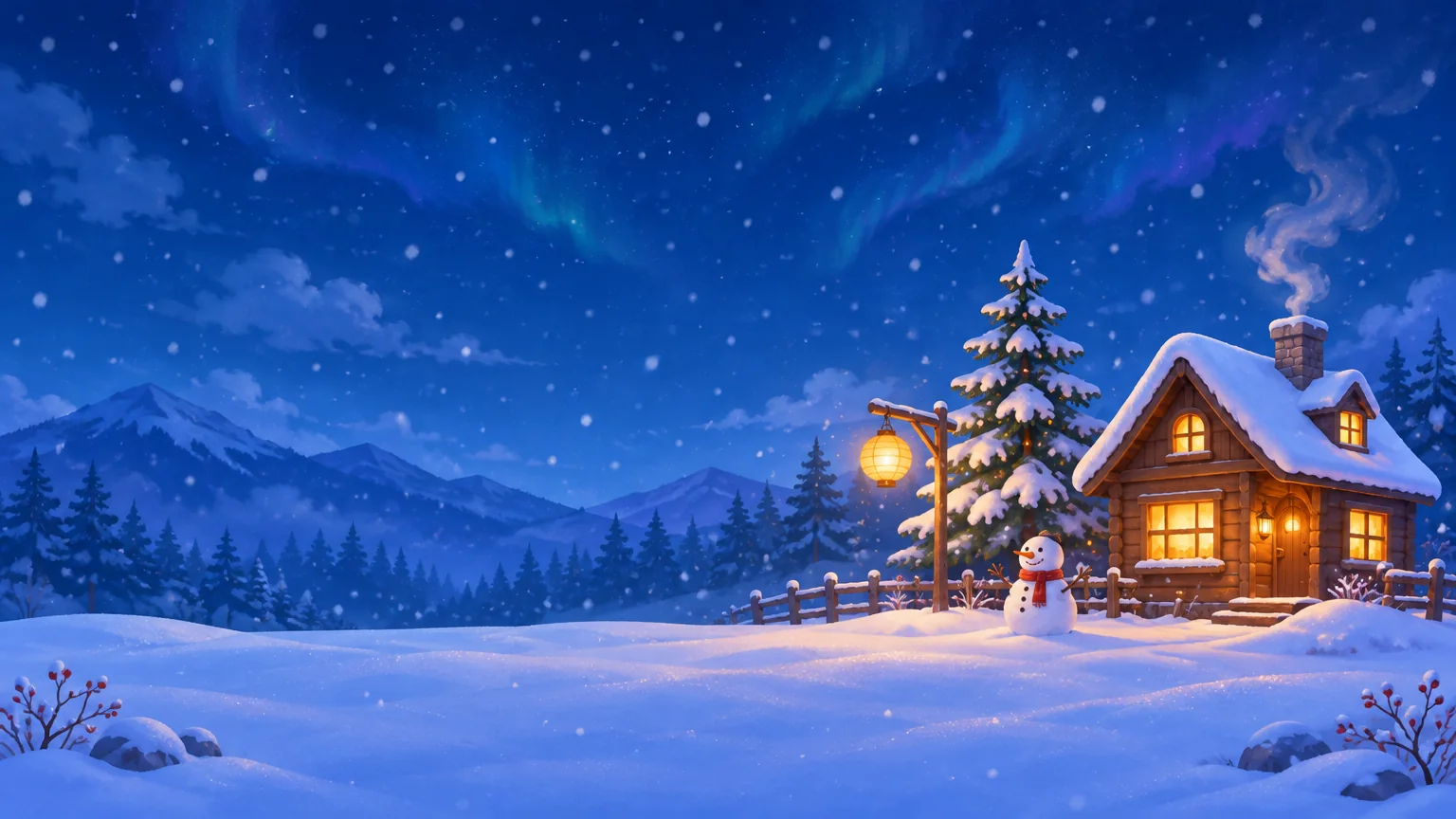
AI Christmas Desktop Wallpaper prompts work best when they describe both the holiday scene and the empty space your desktop needs. Start with a prompt below, choose a 16:9, 16:10, or ultrawide canvas, and tell the image tool where to keep the focal point away from your icons and dock.
What's new on this page
- 2026-11-25 — Page published. Added original Christmas desktop wallpaper prompts with screen-ratio and icon-space tips.
A desktop wallpaper needs a layout, not just a scene
A wallpaper is a background for your everyday screen, so composition matters as much as Christmas sparkle. Before generating, note where your shortcuts, taskbar, or dock usually sit. Keep the main subject in the opposite area, and ask for simple, low-contrast space behind interface elements.
Use these quick framing cues:
- 16:9: A versatile horizontal frame for many desktop displays. Keep the main subject centered or slightly off-center, with breathing room at the bottom.
- 16:10: A little taller than 16:9. Use the extra vertical room for a tree, window, or snowy foreground; avoid placing small details near the edges.
- Ultrawide: Treat the image like a panoramic scene. Place one clear focal point off-center and let the rest of the width carry quiet scenery, not a row of competing subjects.
Aspect-ratio options and output sizes vary by tool. If your exact screen ratio is unavailable, choose the closest landscape option, then crop or resize to your display. Leave extra room around the edges so the crop does not cut off a face, star, or ornament. For a crisp result, use the largest suitable output available and check how it looks at your actual desktop size.
Cozy and softly lit
These prompts favor warm rooms, gentle contrast, and uncluttered backgrounds. Add “empty lower-right corner for desktop icons” or change the corner to match your setup.
- Window-seat cocoa: “Cozy Christmas evening beside a frosted window, one steaming mug of cocoa on a wooden sill, tiny warm lights reflected in the glass, snowy rooftops outside, focal details on the left third, calm dark-blue open space on the lower right, soft storybook illustration, horizontal desktop wallpaper, no text.”
- Quiet tree corner: “A small decorated Christmas tree beside a reading chair, knitted blanket and one wrapped gift, warm lamplight, intimate cabin room, tree on the right third, uncluttered shadowed wall across the left half for desktop icons, painterly texture, horizontal composition, no lettering.”
- Midnight bakery: “A peaceful holiday bakery after closing, a few iced cookies cooling near a window, garland and a small glowing tree in the distant background, gentle amber light, main cookie tray low on the left, simple dark space along the bottom, charming miniature-diorama style, no words.”
- Snow-globe desk: “A clear snow globe with a tiny evergreen village on a tidy desk, falling glitter-like snow inside the globe, distant candle glow, globe positioned left of center, soft plain wall and low-detail space on the right for icons, whimsical handcrafted aesthetic, no text.”
Bright, playful, and feed-ready
Go for a bold silhouette, a limited palette, and one funny detail. Strong shapes stay readable when your desktop is busy.
- Reindeer delivery break: “Original cartoon reindeer in a puffy scarf taking a snack break beside an overflowing gift sack, snowy rooftop at blue hour, character in the far-right third, broad clean night sky across the left, bright candy-color accents, playful editorial illustration, no text or logos.”
- Ornament planetarium: “A tiny astronaut-like mouse in a red knit cap floating among oversized Christmas ornaments, stars and ribbons, one large ornament as the focal point on the right, quiet deep-green negative space on the left, crisp cut-paper collage, desktop panorama, no lettering.”
- Gingerbread skate park: “Gingerbread characters skating on a glossy icing rink, gumdrop lights and candy-cane rails, energetic scene contained to the center-right, open pastel sky and simple snowy ground on the left for icons, cute stop-motion-inspired look, original characters, no words.”
- Gift-wrap avalanche: “A playful pile of patterned presents tumbling down a snowy hill, one tiny mitten waving from the top, simplified wrapping-paper shapes, action concentrated in the lower-left, clean pale winter sky across the upper-right, graphic illustration, no text.”
Cinematic winter worlds
For a more dramatic desktop, describe the light source, depth, and where the horizon sits. Keep any bright focal detail away from the interface-heavy area.
- Aurora train stop: “A little red winter train waiting at a remote snowy station under a green aurora, warm windows glowing, train and platform on the far-left third, broad dark open sky across the right, cinematic wide composition, delicate snowfall, no signs or text.”
- Moonlit forest path: “A winding path through snow-covered fir trees toward a tiny illuminated cabin, full moon behind thin clouds, cabin placed in the right third, darker quiet forest opening on the left for desktop icons, cinematic painted realism, no people, no lettering.”
- Frozen lake lanterns: “A row of paper lanterns glowing beside a frozen lake, distant mountains and a small evergreen shoreline, reflections lead toward a focal lantern on the right, broad smooth dusk sky on the left, serene film-still mood, horizontal landscape, no text.”
- North-pole observatory: “An original whimsical observatory perched on a snowy cliff, brass telescope pointed toward a constellation shaped like a pine tree, observatory on the far right, open midnight sky across the left and center, subtle festive lights, cinematic concept art, no words.”
Minimal, modern, and color-led
These make room for widgets and icons by keeping detail intentional. If you want a cleaner result, explicitly ask for no scattered decorations or tiny background objects.
- Single star, soft gradient: “Minimal Christmas desktop background, one delicate gold star hanging from a pine sprig in the upper-left corner, deep forest-green-to-midnight gradient, large uninterrupted dark space across the center and lower-right, elegant paper texture, no text.”
- Frosted geometry: “Modern winter composition with translucent frosted-glass shapes, one small evergreen silhouette and a warm circular glow near the right edge, restrained cream, pine, and muted-red palette, broad plain area on the left, clean design, no lettering.”
- Scandi tabletop: “A simple overhead arrangement of one fir branch, a cinnamon stick, two dried orange slices, and a small red ornament on pale linen, objects arranged only along the lower-left edge, ample blank warm-white space above and to the right, soft natural shadows, no text.”
- Tiny village panorama: “A row of simple snow-covered houses with glowing windows along the bottom edge, gentle rolling hills, large twilight sky fading from plum to blue, a few small stars, quiet minimalist illustration, keep the upper two-thirds uncluttered, no words.”
Adapt a prompt to your screen and tool
Use a prompt as a starting brief, then make the output fit your setup rather than piling on adjectives. Highsfield’s AI image tools give you a place to explore image-generation options; the wording below can help you carry your chosen concept into the tool you use.
- Set the frame: Add “horizontal 16:9,” “horizontal 16:10,” or “ultrawide panoramic composition.” If the tool offers a ratio selector, set it there too.
- Call out the safe area: Name the corner or edge where your icons, taskbar, or dock appear. Ask for “low-detail negative space” there—not a blank strip that feels disconnected from the scene.
- Choose one focal point: Specify what should catch the eye first, then place it away from your most crowded desktop area.
- Tune the style: Swap “paper collage” for “soft watercolor,” “clean vector illustration,” or another visual direction. Keep the subject and layout intact while changing the finish.
- Review at desktop scale: Check whether the subject still reads when the image is used as a background. If the crop hides an important detail, regenerate with more edge padding or a more central focal point.
For a related way to shape an image brief, browse the Flux AI image generator for product and design prompts. You can also explore AI video tools if you want to develop a still-wallpaper concept into a motion idea.
FAQ
What aspect ratio should I use for a Christmas desktop wallpaper?
Use the ratio that most closely matches your display: 16:9, 16:10, or ultrawide. If you are unsure, check your display settings or device specifications, and leave extra edge room in the prompt for cropping.
How do I keep desktop icons from covering the main subject?
Put the focal subject on the side with fewer icons and explicitly request low-detail negative space where your icons sit. Mention the taskbar or dock too, especially if it covers the bottom edge.
Should I include a resolution in the prompt?
You can mention your target dimensions if you know them, but use the image tool’s available output-size controls when possible. Match the final image to your screen and inspect the crop before setting it as your wallpaper.
Can I use these prompts with different image tools?
Yes. Keep the subject, composition, and safe-area instructions, then adjust the style or framing language to suit the options in your chosen tool. Tool controls and available ratios can differ.
Pick a mood, make the safe area match your desktop, and start shaping your next image brief with Highsfield’s AI image tools.